CBC-PROC-249 Version 1 last review date: May, 2019
A Service Report is a predefined questionnaire that allows a User to complete question sets for each asset on a Work Order.
Once a Service Report is complete, a Pass or Fail rating may be applied, allowing users to take further action if necessary.
1.0 Navigate to Service Report
1.1 From a Work Order.
- Navigate to the desired Work Order.
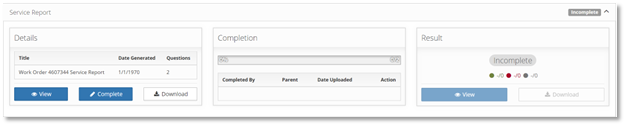
- On the Service Report tab, click the ‘Complete’ button to begin the Service Report.
2.0 Complete the Service Report
2.1 Fill in responses
- Provide a response for each question on the Service Report.
- Questions marked with a red asterisk are considered mandatory. All of these questions must be answered before the Service Report can be marked complete.
| RESPONSE TYPE | INPUT |
|---|---|
| Text Response | Enter a response with any keyboard characters. |
| Number Response | Enter a response with any numeric characters. |
| Date Response | Enter a response in a valid date or click the date button to select a date. |
| Photo | Click the upload button to select a valid image file. Multiple photos may be uploaded. |
| Signature | Click the upload button to select a valid image file, and add your name. A single image may be uploaded. |
| Multiple Choice Responses | Select a response from the pre-defined choices. Some choices are considered ‘positive’ or ‘negative’ and may affect the overall pass or fail of the Service Report. |
2.2 Save the Service Report
- Click the ‘Save’ button to save your progress.
- It is possible to save your progress in the Service Report, even if it is not complete or if not all the mandatory questions are answered.
2.3 Mark the Service Report as Complete
- When all mandatory response questions have been answered, the ‘Complete’ button will become active and you can mark the Service Report as Complete.
- Once a Service Report is complete, it will appear in the Document Review panel as a ‘proposed’ document, ready to be reviewed by the CBC admin team.
ℹ️
Service Reports can be completed by more than one individual. Each user can simply click the ‘Complete’ button to start their own instance of the Service Report. When they are ready, they can submit their completed portion of the report. Once all questions have been answered, the partially completed reports will be compiled into a complete report.
3.0 Review Service Report
Saved Service Reports, complete or otherwise, are available to view on the Work Order.

3.1 View Service Report.
- Click the ‘View’ button to display the Service Report.
3.2 Export the Service Report in PDF Format.
- From Service Report View, click the ‘Download PDF’ button.
3.3 Edit the Service Report.
- Click the ‘Edit’ button. This button will only be available if it is your own Service Report, or you have the correct permission.
3.4 Delete the Service Report.
- Click the ‘Delete’ button. This button will only be available if you have the correct permission.