CBC-PROC-220 Version 4 last review date: Aug, 2023
1.0 Raise a Debtor Invoice
1.1. Raise a Debtor Invoice via the Navigation Panel
Click the ‘Invoices’ menu option on the Navigation Panel, then click the ‘Raise Debtor Invoice’ menu option.
Continue from Step 2. Edit a Debtor Invoice.
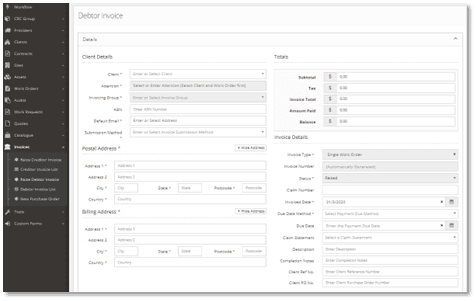 Image: ‘Raise Debtor invoice’ menu option
1.2. Raise a Debtor Invoice from a Work Order
Select a Work Order from the Work Order List, and then select the ‘Costs’ Section.
Click the ‘Raise Debtor Invoice’ button to start creating a new Debtor Invoice.
- This process will take all cost lines (including Work Order Cost Lines, Creditor Invoice Lines and Purchase Order Lines) on the Work Order and populate these into the new Debtor Invoice Source Lines. Where the existing cost lines are referenced to a Catalogue Item, or a Contract Mark-up Rate exists, the process will attempt to find a matching Sell Price to populate onto the Debtor Invoice.
See the ‘Edit a Debtor Invoice’ section to proceed further.
Where available “Non-Catalogue Item Mark-up Rates” will be utilised to determine the Sell Price when raising a Debtor Invoice from a Work Order, where Cost Lines are not already linked to a Catalogue Item.
If multiple ‘Non-Catalogue Item Mark-up Rates’ are available for a give cost line, a pop-up form will be displayed during the creation process so you may select the appropriate rate.
Please see ‘CBC-PROC-225 Setting up a Contract’ to see how to set up Non-Catalogue Item Mark-up Rates in Contract Settings.
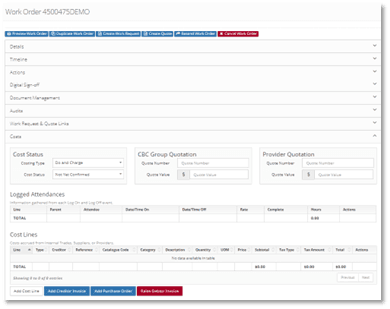 Image: ‘Cost’ Section on a Sample Work Order
2.0 Edit a Debtor Invoice
The Details panel displays Client details relates to the Debtor Invoice, as well as dates and totals.
2.1. Details Panel
- Enter or select values for all required fields.
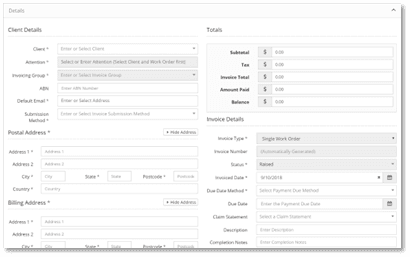 Image: Details panel
| FIELD NAME | DESCRIPTION |
|---|---|
| Client | Select the appropriate Client from the list. This will be pre-populated if the invoice is launched from a Work Order. |
| Attention | Select one or more client users, or type freely to add a person not present in the list. This field will be pre-populated with Client users where the user is assigned to the matching Contract and Site and is ticked for ‘Receive Debtor Invoices’ on their Notification Settings. If no uses exist to pre-populate, ‘Accounts Department’ will be added. |
| Invoice Group | Allows selection of an Invoicing Group, representing who the Debtor Invoice will be submitted to for payment. |
| Invoiced Date | Refers to the date the invoice is officially raised. Invoice Date defaults to the current date and can be edited if necessary. |
| Due Date Method | Select the Due Date Method from the list. |
| Due Date (Optional) | Enter the Date when payment of the Debtor Invoice is due. |
| Claim Statement (Optional) | Refers to the legal phrase that appears on official invoices. This phrase can differ based on the location of the client. Populated with a list of all active claim statements. When the invoice is created, this should pre-populate to a claim statement based on the site of the linked Work Order. |
| Description (Optional) | Enter a Description for the Debtor Invoice. This will pre-populate with the description from a linked Work Order. |
| Completion Notes (Optional) | Enter a Completion Note for activity completed. This will pre-populate from a linked Work Order where available. |
| Client Ref No. (Optional) | Allows entry of a Client Reference Number. |
| Client PO No. (Optional) | Enter a Client Purchase Order number. |
| Invoice is a sub-invoice flag | Tick this checkbox when you want to indicate that the invoice being raised is planned to be added to a claim invoice in the future, such as at end of month. Functionally, checking this box will prevent the invoice from being transferred to the accounting package. IMPORTANT: It’s important to set this correctly on at the same of initial save to ensure the invoice is not transferred to the accounting package in error. |
| Invoice is a Progress Claim | Tick this checkbox when you want to indicate that the invoice being raised is a progress claim and that additional invoices will be raised in the future for the same job. |
| Invoice is in draft mode | Where the Draft Mode feature is on, on initial creation an Invoice will be considered a draft and will be titled as Draft Bill. Permitted users, or automatic processes from our accounting system, can change this once the draft bill is accepted. In normal procedure, there is no need for action within CMMS to change this. |
2.2. Links Panel
- The Links Panel displays information on linked Work Orders.
- Select a Work Order number from the list. This will update the Description and Completion Notes fields, if they are not already populated. If the Debtor Invoice was started on the Work Order itself, this link will already be made.
| FIELD NAME | DESCRIPTION |
|---|---|
| Work Order Link | This creates a link between the debtor invoice and the Work Order. When this link is made, the costs of the debtor invoice will be visible on the Work Order. |
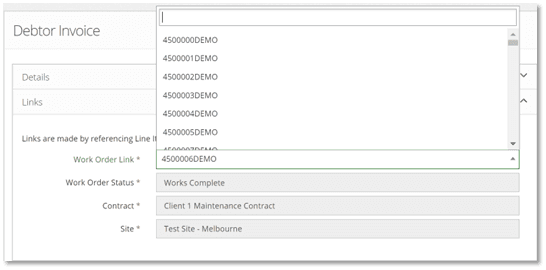 Image: Links panel
2.3. Source Line Items Panel
The panel allows addition of source lines from Work Orders and other Debtor Invoices
2.3.1. Source Line item table description
- The Source Lines table represents the buy and sell prices that form the invoice. These can come from various sources, such as Work Orders (with the Work Orders cost lines and linked creditor invoices), other invoices, Quotes, or Schedules.
 Image: Source Line Item table
2.3.2. Add a source line item via a new Source Line item
Allows users to select line items manually without reference to an existing Work Order(s) or Invoice.
Click the ‘Add New’ button to add a new cost line to the Debtor Invoice.
Select a Catalogue Item if applicable or enter data in the required fields.
Click the ‘Ok’ button to add to the Source Line Items table Or click the ‘Mark as Ready’ to confirm that the Source Line item is ready.
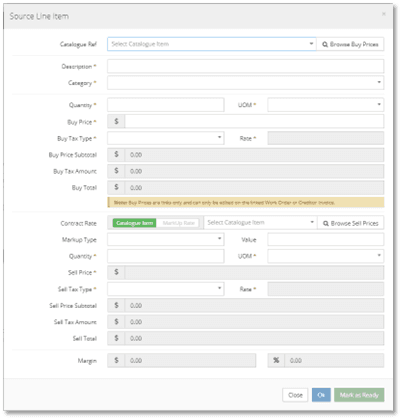 Image: ‘Add Source Line Item’ Pop-up Form
2.3.3. Add source lines item via Individual Work Orders
Allows users to add the costs from one or more Work Orders to the Debtor Invoice, bringing any cost lines relating to the Work Order to the Invoice.
Click the ‘Add Individual WO’s’ button.
From the ‘Work Order Selector’ pop-up form, tick the checkbox for the Work Order(s) that you would like to add. Use filters to refine your selection.
Once the Work Orders are checked, click the ‘Add Selected Work Orders’ button to add costs from those Work Orders to the Source Line Items table.
Where a selected Work Order has buy and or sell prices derived from a Schedule, adding these will prompt the user to choose whether the Buy and Sell prices from the Schedule should be used for the invoice.
 Image: ‘Work Order Selector’ Pop-up Form
2.3.4. Add Source Line Item via Scheduled Batches
Allows users to add batches of Scheduled Work Orders. This will add all costs from the Work Orders in the batch to the invoice.
Click the ‘Add WO’s via Scheduled Batch’ button to display the ‘Work Order Batch Selector’ pop-up form.
Use filters to find the batches you require.
Select or leave unchecked the ‘Include Unready Work Orders’ checkbox.
- When checked: Includes all Work Orders even if they are not eligible for Invoicing, includes all open Work Orders.
- When unchecked: Only includes the Work Orders that have had their works completed.
Click the ‘Add Selected Work Order Batches’ button.
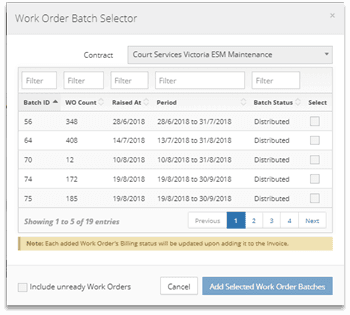 Image: ‘Work Order Batch Selector’ Pop-up Form
2.3.5. Add Source Line Items via existing Debtor Invoices
Allows users to add line items to the Source Line Items table from existing Debtor Invoices to form a claim invoice.
- Click the ‘Add Invoices’ button to display the ‘Debtor Invoice Selector’ pop-up form.
- Use filters to find the invoices you require.
- Click the ‘Add Selected Invoices’ button to add all line items from the selected Invoices to the Source Line Items table.
Invoices added to the claim will have their status updated to ‘Added to Claim – Awaiting Payment’, and when the claim invoice is paid, this will update again to ‘Added to Claim – Claim Paid’.
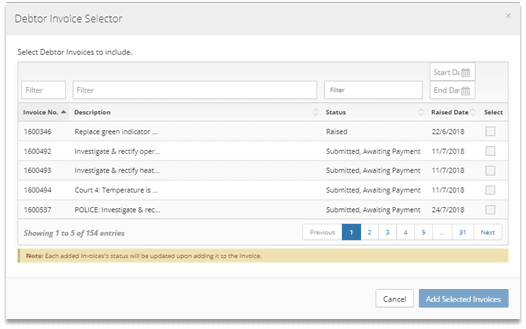 Image: ‘Debtor Invoice Selector’ Pop-up Form
2.3.6. Marking Line Items as ready
When Line items are confirmed, click the ‘thumbs up’ button to mark them as ready. Only the ‘Marked as Ready’ items will be included when calculated Output source items.
2.3.7. Link Composition
The table shows a breakdown of line items included in the Source Line items table.
Any changes that have been made to Source line items since the invoice was created will appear as a warning message to advise the users.
2.4. Output Line Items Panel
The panel allows to add manual Output Line items, calculates the Sell prices based on the ’Marked as Ready’ items selected in the Source Line items panel.
2.4.1. Adding Output Line items manually
Without having to reference any Source line items, users can add Output line items and directly associate the line items towards the Invoice Total. Manually added line items do not evaluate when calculating Source Line items so they appear in Output line items as added.
2.4.2. Calculating output Line items
Invoices where there are multiple source lines exist, calculation allows to merge them into 4 different methods.
The Default Merge options in Contract settings can assist with calculating the Line items depend on the Source items associated with the Invoice.
| MERGING OPTIONS | DESCRIPTION |
|---|---|
| Merge to Line Type (Labour, Material) | All the marked as ready Source Lines with Sell prices will merge as Labour Output line item and Material Output Line item as classified in the Source Line items panel. The merge does include the manually added Outline lines in the Output Line items panel. |
| Merge to Catalogue Items | All the marked as ready Source Lines with Sell prices will merge as per Catalogue item number as set up in the Source Line items panel. The merge does include the manually added Outline lines in the Output Line items panel. |
| Merge to Single Line | All the marked as ready Source Lines merge to one Line item. The merge does include the manually added Outline lines in the Output Line items panel. |
| Don’t Merge | All the marked as ready Source Lines populate as separate Output Line items in the panel. The manually added Outline lines also appear as separate Output line items. |
2.4.3. Generate Invoice Summary
CBC users can generate the summary of all Source Line items as an excel spreadsheet. Click the ‘Generate Invoice summary’ button at top of the invoice and select the template you wish to download.
If the template is not available, please contact the CMMS Support team.
- Click the ‘Generate Source Summary’ button at the top of the Debtor Invoice view.
- The generated summary will be downloaded by your browser in a short time.
- This document will then appear in Document Management section of the Debtor Invoice view.
2.5. Payments Panel
The Payment panel displays the payments that have been made for this specific Debtor Invoice and allows for new payments to be added.
A Payment import process runs overnight to collect payment data from JIWA (CBC’s accounting package) and applies payments against the corresponding Debtor Invoice automatically. It is therefore not usually necessary to add Payments manually.
| FIELD NAME | DESCRIPTION |
|---|---|
| Date Paid | Enter the Date Paid or click the ‘Date Selector’ to choose a date. |
| Amount | Enter the payment amount. |
| Payment Type | Select a Payment Method via the list (‘EFT’ or ‘Cheque’) |
| Processed By | Select the User from the list or enter the person who processed the payment.Payment Reference |
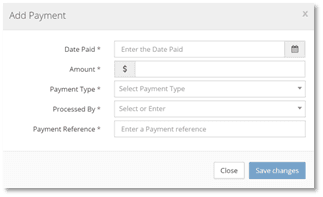 Image: Add Payment form
2.6. Document Management Panel
The Document Management Panel displays all Documents that have been uploaded to the Debtor Invoice.
- Click the button to add a document to the Debtor Invoice.
- Check the ‘Inherited Work Order Documents’ to attach documents to the email generated when distributing the invoice.
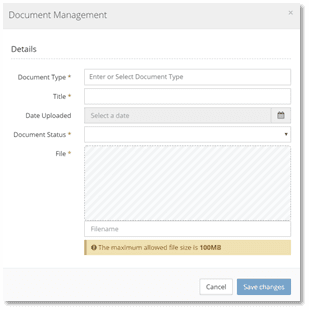 Image: Document Management Window
| FIELD NAME | DESCRIPTION |
|---|---|
| Document Type | Enter or select one or more Document Type(s) |
| Title | Enter the Title of the Document. |
| Document Status | Select a status for the document. For CBC users, this will default to ‘Approved’. When external users upload a document, this will default to ‘Proposed’. |
| File | Drag and Drop a file into the Dropzone or click on the Dropzone to display a file selection dialog box. |
2.7. Save Changes
When you have reviewed the Source Line Items, calculated Output Line Items, and populated all fields, click the ‘Save’ button.
3.0 Approving or Rejecting an Invoice
The Debtor Invoice Approval process is an optional feature. The following section details functions and processes that will only appear when the approval flow is on.
3.1. Changes when Debtor Invoice Approval Flow is on
- Approve and Reject buttons will appear at the top and bottom right corners of the Debtor Invoice view, to permitted users.
- Invoices cannot be submitted if the invoice is not approved.
- Approval limits for Debtor Invoice approval can be set on each Users User Profile.
- Approving a Debtor Invoice will automatically generate the Source Summary document.
3.2. Approving a Debtor Invoice
- Open the invoice you wish to approve.
- Click the ‘Approve’ button in the top (or bottom) right.
- The approval pop-up form will appear.
- Optionally, enter an approval comment.
- If the invoice value is within your approval limit, click the ‘Approve’ button.
- The invoice status will become ‘Internal Review Passed’.
- If the invoice value is above your approval limit, select an approver to whom the invoice should be sent for further approval.
- A notification will be sent to that User.
- The invoice status will become ‘Internal Review Pending’.
3.3. Rejecting a Debtor Invoice
- Open the invoice you wish to reject.
- Click the ‘Reject button in the top (or bottom) right.
- The rejection pop-up form will appear.
- Enter a rejection comment. This will appear in the notification that will be sent to users.
- Click the ‘Reject’ button to complete the rejection.
- The invoice status will be updated to ‘Internal Review Failed’.
4.0 Submit Invoice
Submitting Invoices involves the process of confirming invoice details and distributing debtor invoices to assigned client users.
Email recipients will be pre-populated into the To and CC fields where they are assigned to the Contract and Site, and are ticked for ‘Receive Debtor Invoices’ on their Notification Settings.
- Click the ‘Submit Invoice’ button to display the ‘Select Email Recipients’ Pop-up Form.
- Select or enter all necessary recipients.
- Click the ‘Send’ button to submit the Debtor Invoice.
 Image: The ‘Submit Invoice’ button
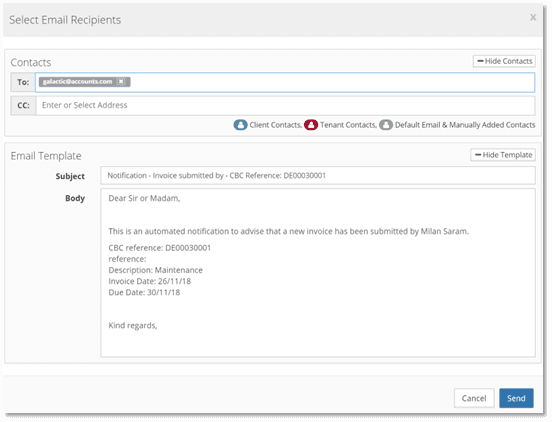 Image: ‘Select Email Recipient’ pop-up form