CBC-PROC-096 Version 2 last review date: Mar, 2021
1.0 Starting a new Purchase Order
Purchase Orders can be raised from two locations.
1.1 From a Work Order
Navigate to the desired Work Order.
On the Costs tab, click ‘Add Purchase Order.
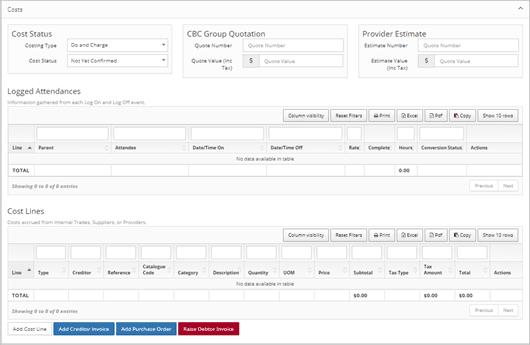 Image: The ‘Add Purchase Order’ button
1.2 From the Navigation Panel
Select the ‘Invoices’ menu option.
Under ‘Invoices’ select the ‘New Purchase Order’ menu option
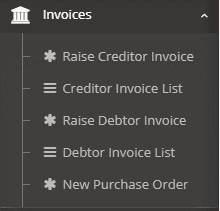 Image: The ‘New Purchase Order’ button
2.0 The New Purchase Order Wizard
2.1 Step 1 – Enter invoice details.
| FIELD | DEFINITION |
|---|---|
| Provider/Supplier | Select the Provider or the Supplier from the list. This will auto-populate if navigating from the Work Order. |
| Invoice Number | Enter Invoice number if available. |
| Invoice Total (GST) | ‘Invoice Total’ is required, but ‘0’ can be entered if the actual amount is not known. |
| Invoice Date | ‘Invoice Date’ should be entered as the current date. |
| Due Date | Select the Due Date from the date picker or enter the date. |
| Description | The Description field will be populated with the Description from the selected the Work Order. Feel free to change this to something more relevant if necessary. |
| Delivery Notes | Enter the Delivery notes if applicable. |
| Work Order Number | Each Purchase Order must be associated with a Work Order. Select the Work Order from the list or if the Purchase Order is raised by clicking the ‘Add Purchase Order’ button on a Work Order, the ‘Work Order’ field is pre-populated. |
2.2 Step 2 - Attach documents, such as any correspondence relating to the Purchase Order.
-
Drag a file onto the Dropzone.
-
Click the edit button and select a Document Type for the added file.
-
Adjust the document title if desired.
2.3 Step 3 - Add Line Items for each line of the Purchase Order.
-
Click the ‘Add New’ button to add a line. This will display the Add Line form. At least one line is required.
-
Select a Catalogue Item, or manually enter the details of the item to be purchased.
-
Click the Save Changes button
2.4 Step 4 – Review the details that have been entered and choose whether to send a notification.
- This functionality is designed for incoming Creditor Invoices. In most cases, there is no need to send a notification when creating a Purchase Order.
2.5 Step 5 – Confirmation
- The Purchase Order will be automatically created when Step 5 is reached.
2.6 Navigate to the Purchase Order
- Click the ‘View Purchase Order xxx’ button in the bottom right corner to access the newly created Purchase Order.
2.7 Click the ‘Create Purchase Order PDF’
- button in the top left corner, this will download a PDF of the Purchase Order that can be emailed, printed or faxed as you require.
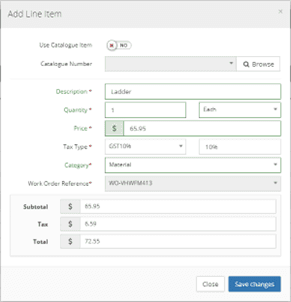 Image: The ‘Create Purchase Order PDF’ button