CBC-PROC-214 Version 1 last review date: Jul, 2019
Catalogue Items represent both stocked items and labour rates, and allow prices for these to be set for particular Provider and Contract Combinations. These catalogue items can then be selected on Work Order cost lines, Creditor Invoice lines, Purchase Order lines and Debtor Invoice lines..
1.0 Create a new Catalogue Item
- Select ‘Catalogue’ from the Navigation Panel, and then select ‘Create new’
- Refer to Step 2. Edit a Catalogue Item (below) for further detail on each field.
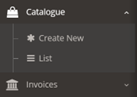
Image: ‘Create New’ menu option
2.0 Edit a Catalogue item
2.1 Open a Catalogue Item
Select ‘Catalogue’ from the Navigation Panel and then select ‘List’.
Select the Catalogue Item from the Catalogue Item List.
Update details, or edit/add buy and sell prices as necessary
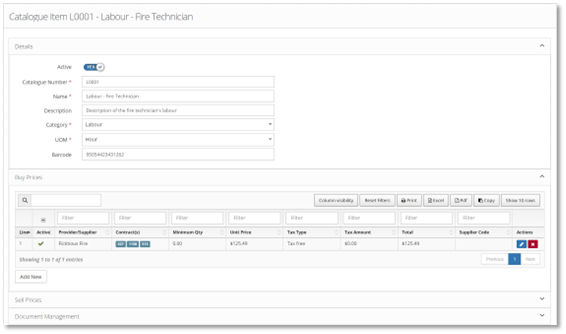
Image: ‘Catalogue Item view’
| FIELD NAME | DESCRIPTION |
|---|---|
| Details | |
| Active | Toggle is in Active mode by default. If required turn the toggle off to make the item inactive. Inactive Catalogue Items are not selectable on Work Orders or Invoices. |
| Catalogue Number | Enter a Catalogue Number to identify this item in lists. |
| Name | Enter the Catalogue Name to be displayed in Catalogue list. |
| Description (Optional) | Enter a Description for the Catalogue Item.Category |
| UOM | Enter the Unit of Measure, such as ‘Hour’ for labour items, or ‘Each’, ‘Carton’, ‘Box’ etc for physical items. |
| Barcode (Optional) | Enter the barcode number, if applicable. |
| Buy Prices | See ‘2.2 Edit Buy Price’ for a description of all fields. |
| Sell Prices | See ‘2.3 Edit Sell Price’ for a description of all fields. |
| Document Management | Shows a list of all reference documents added to this Catalogue Item. |
| Action (Optional) | Click the Add ‘ + ‘ button to add a document. |
The Accounts department has guidelines regarding Catalogue Items for labour rates. Be sure to consult with them prior to creating new items.
2.2 Buy Prices
Buy Prices represent the cost for CBC to purchase the item from a Provider or Supplier.
A single Catalogue Item can have Buy Prices from multiple Providers, representing that the same item can be purchased from multiple vendors, or that labour can be provided from multiple service Providers, or that a Provider may charge a different rate for the same labour on different Contracts.
A single Catalogue Item can also have multiple Buy Prices from the same Provider, as long as these prices are associated with different Contracts and/or Regions.
| FIELD NAME | DESCRIPTION |
|---|---|
| Active | A switch to toggle whether this Buy Price is active or inactive. Inactive Buy Prices will not be available to be added to new cost lines.Contracts |
| Region | Regions for which this Buy Price is applicable. |
| Provider | The Provider/Supplier from which this item is purchased. |
| Minimum Qty | Allows a minimal quantity to be set when being added to cost/invoice lines. |
| Note: 0 represents no minimum. | |
| Price | The Price of the item, per Unit of Measure. |
| Tax Type | Allows the selection of the applicable tax rate. |
| Supplier Code (Optional) | Allows a supplier product code to be entered. This usually applies to physical items and would represent the Supplier’s barcode or SKU for the product. |
2.2.1 Edit Buy Price
Click Edit to modify the Buy Price.
Once details have been added or modified, click ‘Save Changes’ to commit the changes and close the form.
2.3 Sell Price
Sell Prices represent the value that CBC charges clients for the item.
When a Debtor Invoice is created and there are existing Work Order cost lines or Creditor Invoice lines that are linked to a Catalogue Item, the Debtor Invoice price can be automatically calculated based on the Contract and Region of the Work Order.
A Contract can have multiple Sell Prices, as long as they are for different Regions.
| FIELD NAME DESCRIPTION |
|---|
| Active Allow to select the current Sell Price utilise in Invoice when raising.Contracts Contracts for which this Sell Price is applicable. |
| Region Regions for which this Sell Price is applicable. |
| Mark Up Type Select Mark Up type from the list to determine the method to calculate the Sell price. |
| Fixed Price – the Sell Price is a fixed price |
| Fixed Percent – the Sell Price is calculated as a percentage addition to the Buy Price. |
| Fixed Addition – the Sell Price is calculated as a fixed addition to the Buy Price. |
| Provider The Provider or Supplier from which this item is purchased. |
| Minimum Qty Allows a minimal quantity to be set when this item is added to invoice lines. |
| Note: 0 represents no minimum. |
| Fixed Price/Fixed Addition/ Fixed Percentage Depending on the Mark Up Type selected |
| Fixed Price – Enter a fixed price. |
| Fixed Percent – Enter a percentage to be added to the Buy Price. |
| Fixed Addition – Enter a value to be added to the Buy Price. |
| Tax Type Select a Tax Type. |
2.3.1 Edit Sell Price
3.0 Apply Catalogue items in Invoices or Cost lines.
Catalogue items can be utilised on Work Order Cost Lines, Purchase Order lines, Creditor Invoice lines and Debtor Invoice lines.
3.1 Work Order Cost Lines
- On the Costs panel, click ‘Add Cost Line’, and select a Catalogue Item from the ‘Add Cost Line’ popup form.
- A Work Order cost line can also be generated by converting a Logged Attendance. Click the ‘Convert to Cost Line’ button in the Action column of each attendance and select a Catalogue Item from the available options.
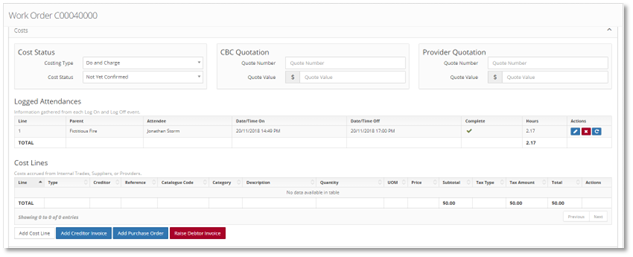
Image: Cost Line Section on Work Order.
3.2 Creditor Invoice / Purchase Order / Debtor Invoice Line
- Creditor Invoice Lines can be associated with Catalogue Items when creating the Creditor Invoice, or when editing an existing Creditor Invoice.
- Click the ‘Add’ button, and select a Catalogue Item by clicking the ‘Browse’ button
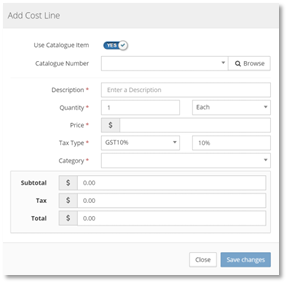
Image: ‘Add Cost Line’ Window