CBC-PROC-052 Version 1 last review date: Aug, 2023
Utilising Automatic Cost Lines
1.0 Introduction
This section provides an overview of the Automatic Cost Line process and details what steps are needed for this process to work.
1.1. Overview
The Automatic Cost Line functionality allows Work Order Cost Lines to be generated automatically from logged attendance times, in real time.
Set up options to the function should apply to:
- applicable Work Order Types,
- applicable User types (internal or external),
- specify rounding options,
- specify what rate should be applied for each User.
When the technician logs on, a cost line appears on the Work Order Costs panel, and as time progresses, the cost line is updated. When the technician logs off, the cost line is updated again, allowing the line to be accepted.
1.2. Set Up Steps
1.2.1. Contract Settings
Turn on the function and set options. See Chapter 2 for details.
1.2.2. Catalogue Items
Set up rate sets that can be applied to Users. See Chapter 3 for details.
1.2.3. User Profile
Assign rate sets to Users. See Chapter 4 for details.
1.3. See Effect
Work with the automatically generated cost lines. See Chapter 5 for details.
2.0 Contract Settings
2.1. Navigate to Contract Settings
- Navigate to a Contact via a contract link, such as from Contract List, or from various other places.
- Click the ‘Contract Settings’ button (top right).
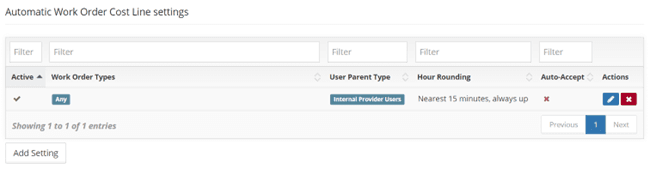
2.2. Add Automatic Cost Line Setting
- Navigate to ‘Reactive Works’.
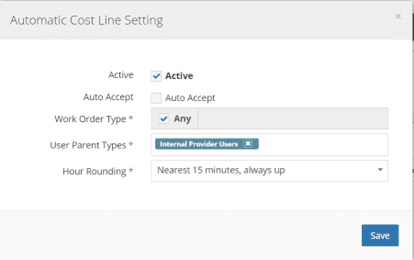
- Click ‘Add Setting’. The ‘Automatic Cost Line Setting’ pop-up form will appear.
- Select values as necessary.
- Add additional Automatic Cost Line Settings if necessary.
- Save Contract Settings.
These settings are contract specific. They will need to be repeated for all Contracts individually.
2.3. Table – Automatic Cost Line Settings (Contract)
| FIELD | DEFINITION |
|---|---|
| Active | Allows toggling of whether this setting is active and will trigger automatic cost line creation. |
| Auto Accept | Allows toggling of whether the Automatic Cost Line is automatically accepted when the logged on user logs off, or whether the line will remain as ‘awaiting acceptance’ until updated. |
| Work Order Type | Allows selection of Work Order Types, or the ‘Any’ option, which applies the setting to all Work Order Types. |
| User Parent Type | Allows selection of one or more of: - Tenant Users (CBC users) - Internal Provider Users - External Provider Users |
| Hour Rounding | Allows selection of a rounding option, from: - ‘Nearest 15 minutes’ always up’. - ‘Nearest 30 minutes, always up’. - ‘Nearest hour, always up’. - No rounding. |
Click the ‘+’ button to select a Catalogue Item.
2.4. Image – Automatic Cost Line Settings (Contract)
2.5. Image – Automatic Cost Line Settings Pop-up Form (Contract)
3.0 Catalogue Item Setup
3.1. Overview
A Catalogue Item Set is basically a collection of related Catalogue Items that cover different billable elements that may apply to labour charges, such as ‘business hours’, ‘after hours’ etc. The Automatic Cost Line function can select the appropriate rate.
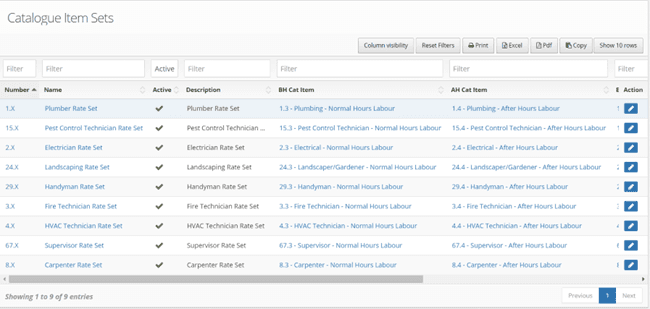
3.2. Review Existing Catalogue Item Sets
To check if a Catalogue Rate set already exists, use the ‘Catalogue Item Sets’ view, accessible via the menu: Catalogue > Catalogue Set List
3.3. Create a Catalogue Item Set
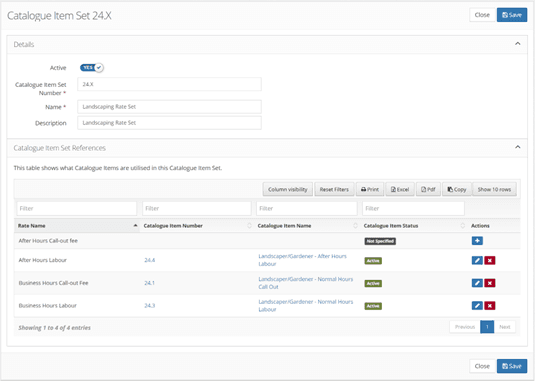
- Navigate to the Catalogue Item Set creation view via ‘Catalogue’ > ‘New Catalogue Set’.
- Populate the header fields as desired.
- Expand the ‘Catalogue Item Set References’ panel.
- Select component Catalogue Items by clicking the plus button ( + ). The ‘Set Rate Catalogue Item’ pop-up form will appear.
- Select a Catalogue Item from the list.
- Click the ‘OK’ button.
- Repeat for the four component options. Note that none are mandatory.
- Click the ‘Save’ button to save the Catalogue Item Set.
- You can return later to populate the references if the Catalogue Item you need does not exist yet and needs to be added.
3.4. Table – Catalogue Item Set fields
| FIELD | DEFINITION |
|---|---|
| Active | Allows toggling of the Active state of the set. Inactive sets can’t be selected by the Automatic Cost Line process. |
| Catalogue Item Set Number | Allows entry of a reference number to label this set. Free text. |
| Name | Allows entry of a text title of the set. Free text. |
| Description | Allows entry of a text description of the set. Free text. |
| Catalogue Item Set References | |
| After Hours Call-out Fee | Click the ‘+’ button to select a Catalogue Item. - Unused |
| After Hours Labour | Click the ‘+’ button to select a Catalogue Item. - Applied when the attendance occurs outside of business hours, as set in Contract Settings. |
| Business Hours Call-out Fee | Click the ‘+’ button to select a Catalogue Item. - Unused |
| Business Hours Labour | Click the ‘+’ button to select a Catalogue Item. - Applied when the attendance occurs inside business hours, as set in Contract Settings. |
3.5. Image – Catalogue Item Set Details
3.6. Image – Catalogue Item Set List
4.0 User Setup
4.1. Navigate to User Profile
• Utilise the User List or Contact view to find the User you wish to update and follow the link to edit their User Profile.
4.2. Add Catalogue Item Rate Set(s)
- On User Profile, expand the ‘Rates’ panel.
- In the ‘Rate Selection’ section, click the ‘Add’ button. The Catalogue Item Set pop-up form will appear.
- Select the appropriate Catalogue Item Set for the User.
- Select which Contracts this selection should apply for or select ‘Any’ to apply the selection to all assigned Contracts. You can only select ‘Any’ for one selected Catalogue Item Set, otherwise there be a logic conflict on which rate to use.
4.3. Prioritise Catalogue Item Sets
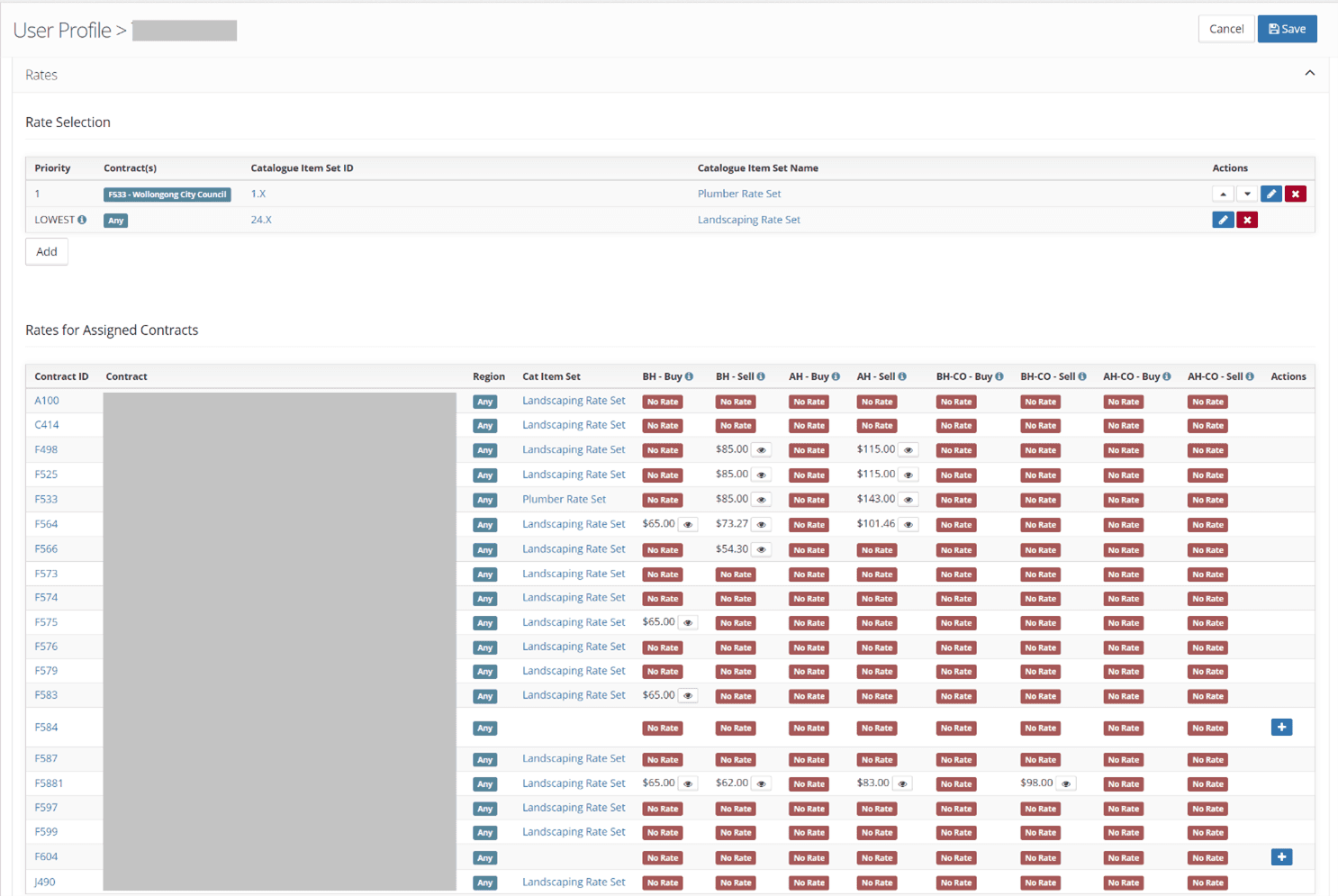
The ‘Rate Selection’ table allows you to position selections in order of precedence. This allows you to assign rates for specific contracts and have that rate take precedence over a selection used for any contract. This allows the system to know which rate to select in a case where multiple rates you have selected could apply.
- After all rates are added and prioritised, save the User Profile.
4.4. Review Assigned Rates
Following saving of the User Profile, you can review the effect of selected rates in the ‘Rates for Assigned Contracts’ section. Review this to ensure that the rates you have selected, and the priority you have applied, is assigning the expected rates to each Contract. Only Contracts to which the User is assigned will appear. Where multiple regions exist on a contract, this will have each have their own line. This will also highlight where gaps in your selections, or in the components of the Catalogue Item set exist.
Automatic Cost Lines can only be generated using Catalogue Items. Manual entry of rates on the User Profile is not supported.
4.5. Image – Rate Settings (User)
5.0 Automatic Cost Line Effect
5.1. The Automatic Cost Line function
When a technician log on commences, settings are checked by the system to see if:
- There are Automatic Cost Line Settings that apply, based on the selected Work Order Type and User parent type.
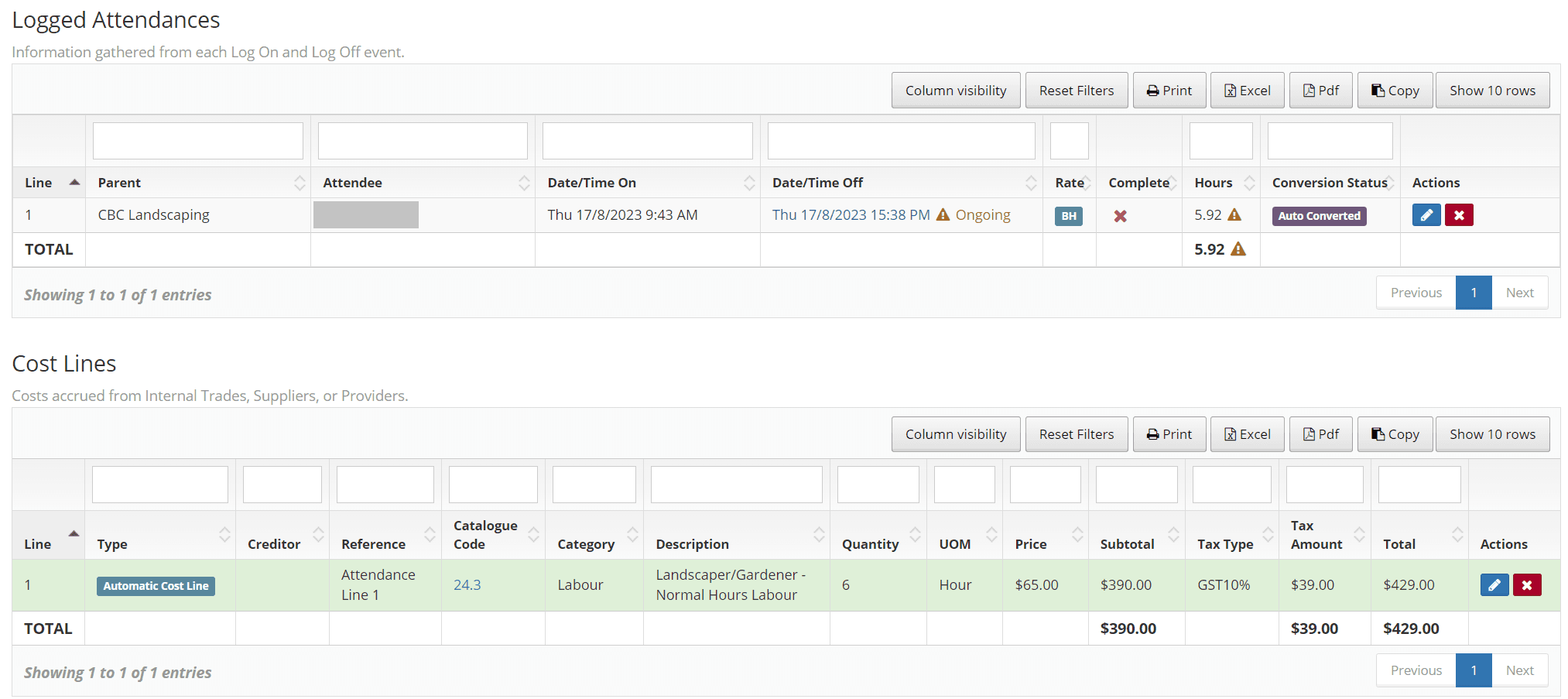
- The User has been assigned a rate that applies to the Contract and has reference links to a Catalogue Items for business hours/after hours as applicable. Where this is true, an Automatic Cost Line is created, as per the example below. No intervention is needed at this point. The Cost Line Quantity will continue to increase as the attendance continues. Note that the Quantity will be adjusted by the selected rounding option. When the technician logs off, the Automatic Cost Line is
5.1.1. Image – Ongoing Attendance
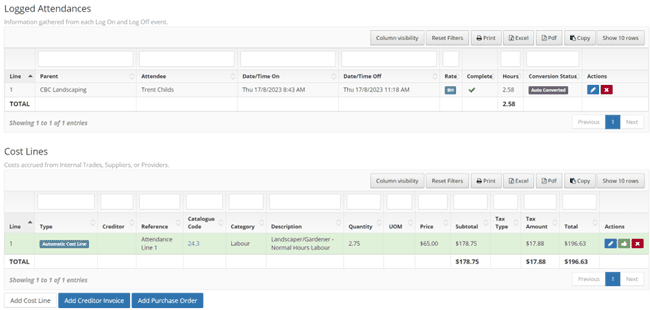
5.1.2. Image – Completed Attendance
5.2. Accepting an Automatic Cost Line
Once an attendance has been completed (whether the works are completed or not), the Automatic Cost Line will display the ‘Accept’ and ‘Delete’ buttons. Clicking ‘Accept’ will convert the Automatic Cost Line into a regular Cost Line, making it ready for debtor invoicing.
Clicking Delete will remove the Automatic Cost Line.
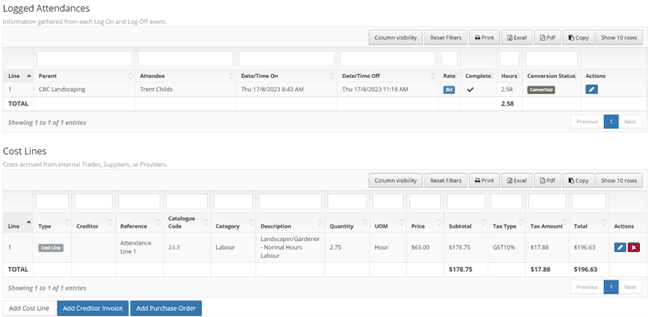
Once an Automatic Cost Line has been accepted, changes to the Logged Attendance will no longer affect the cost line.
5.2.1. Image – Accepted Attendance
5.3. Deleting or Cancelling an Automatic Cost Line
An in-progress Automatic Cost Line can be removed by editing the Logged Attendance.
- Click the ‘Edit’ (pencil) button for the Logged Attendance.
- Toggle the ‘Disable Auto Cost Lines’ to ‘Yes’. Automatic Cost Lines will no longer be generated for this attendance.
An Automatic Cost Line from a completed attendance can be deleted by clicking the ‘Delete’ (X) button.
Accepted Cost Lines can be deleted by clicking the ‘Delete’ (X) button.