CBC-PROC-030 Version 3 last review date: Jul, 2019
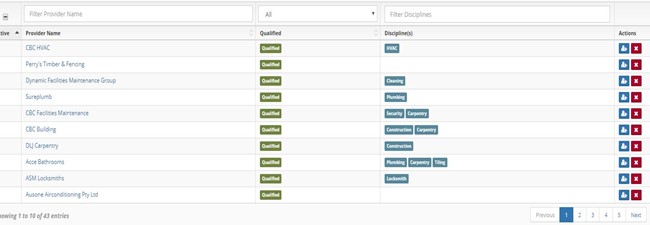
Check first that the provider has not been added already as CMMS allows to duplicate providers. There are 3 steps when setting up a provider: -
- Add provider
- Link to the contract
- Add user this is the email address that the provider information was sent to usually mailbox only until provider pack received back. Refer to Adding a user procedure.
If the contract is inactive in CMMS the provider will need to be added to MEX as well. If adding an ARV provider to MEX ensure to add trade code for the company and the trade of the company i.e.: - Carpentry, Electrical etc. default code is Carpentry.
1.0 Sending Provider pack
Send out provider pack as per Provider requirements Sending_Ver 1 located in G:\CBC BUS SYS\Induction\Provider Requirements Sending_Ver 1.xlsx. CC person in who requested the provider pack.
2.0 Set up Provider in Company Records
Add new folder as per folder structure located in T:\Company Records.
3.0 Add a Provider
3.1 Navigate to the ‘New Provider’ view, via the Navigation Panel.
- This will launch a view allowing you to enter details for the new Provider.
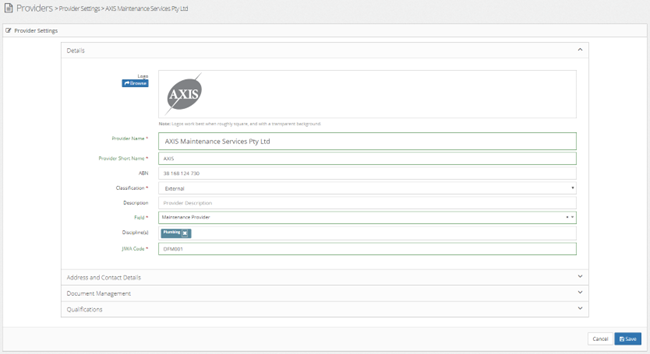
3.2 Complete each field, noting the required fields with a red asterisk.
| Field Name | Required | Description |
|---|---|---|
| Provider Name | Yes | The full legal name of the Provider |
| Provider Short Name | Yes | An abbreviated name that appears in lists etc |
| ABN | Yes | The Providers ABN. This is validated on entry according to Australian ABN guidelines. Ensure this is filled in once provider pack is returned.Classification |
| Description | No | A brief description of the Provider. |
| Field | Yes | Used to describe the function of the Provider, maintenance, supplier, or both. |
| Discipline(s) | No | Allows the addition of Disciplines, such as ‘Plumbing’, ‘Fire’, ‘HVAC’ etc. Will allow for sorting and filtering of Providers in future. |
| JIWA Code | Yes | Specifies the code that the Provider utilises in JIWA. Required for Creditor Invoices to be correctly transferred to JIWA. If an existing provider this can be obtained from MEX under the contractor insurance tab. If no JIWA code send an email to accounts asking for a JIWA code and type in the JIWA code field emailed accounts and the date.Address |
| Billing Address | Yes | This can be ticked as above our into PO box if applicableWork Order Contact Point |
| After Hours Point of Contact | Yes | Obtain this information when provide pack is returned. |
3.3 Add a Logo (optional)
- In the Details panel, a logo can be added by clicking the browse button and selecting an appropriate image file.
4.0 Qualifications
Save all qualifications received into the company records folder located in G:\COMPANY RECORDS, If adding qualifications at the time of set up you can use the add button if you do not have the qualifications utilise add required qualification button.
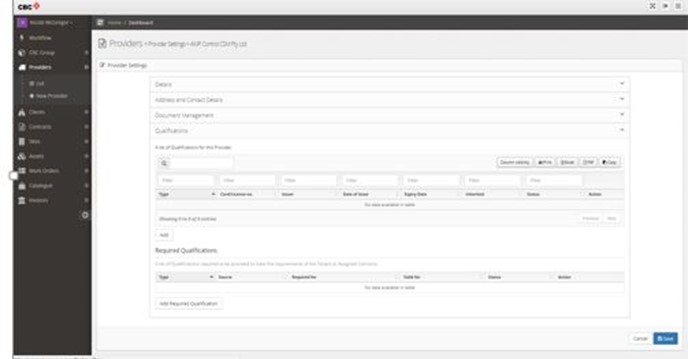
4.1 Add Required Qualifications
| Category | Required | Description |
|---|---|---|
| Induction | Yes | Best in Class Provider Pack |
| Induction | Yes | ABN Certificate. This can be researched at the time of set up at https://abr.business.gov.au/ (opens in a new tab). If you can match up the company details file print the search ABN save as PDF and upload the ABN certificate. |
| Insurance | Yes | Workers Compensation |
| Insurance | Yes | Public Liability |
| Insurance | Yes | Sickness & Accident (SOLE TRADER) |
| Contractor Licence | Yes | Company contractor licence i.e.: - Electrical etc. This can be researched at the time of set up |
Contractor License Links
NSW https://www.onegov.nsw.gov.au/publicregister/#/publicregister/categories (opens in a new tab). QLD http://www.onlineservices.qbcc.qld.gov.au/OnlineLicenceSearch/VisualElements/SearchBSALicenseeContent.aspx (opens in a new tab) VIC https://consumer.etoolbox.buildingcommission.com.au/Pages/Search.aspx (opens in a new tab) TAS https://occupationallicensing.justice.tas.gov.au/Search/onlinesearch.aspx (opens in a new tab) WA http://www.commerce.wa.gov.au/consumer-protection/consumer-protection-licence-and-registration-search (opens in a new tab) SA https://www.sa.gov.au/topics/business-and-trade/licensing/licence-check (opens in a new tab)
Note: Not all companies will have a company contractor licence.|
- After adding each of the above ensure you save changes each time.
- After the above has been added remember to press the save button at the bottom of the screen (see above)
- Note if a sole trader the name for category insurance is sickness & accident
4.2 Adding the Required Documentation
| Category | Issuer | Date of Issue | Expiry Date |
|---|---|---|---|
| ABN Certificate | Australian Government | Is date received from provider or date on ABN certificate | Not Applicable |
| Best in Class Provider Pack | CBC | Date the Best in Class Provider Pack is signed by the provider | Not Applicable |
| Workers Compensation | The insurance company name on the certificate | Date of issue as shown on the certificate of currency | Expiry Date as shown on the certificate of currency |
| Public Liability | The insurance company name on the certificate | Date of issue as shown on the certificate of currency | Expiry Date as shown on the certificate of currency |
| Sickness & Accident (SOLE TRADER) this to be added to the provider name i.e.: - Bunyoung | Constructions (SOLE TRADER) | The insurance company name on the certificate | Date of issue as shown on the certificate of currency |
| Contractor Licence | Can be various depending on state see above links | Date of issue can be the date of adding | Expiry Date as shown on the licence |
- Note all the above status will need to be changed to sighted drag and drop the specified documents into the CMMS file and save changes
- After the above has been added remember to press the save button at the bottom of the screen (Refer to above screen shot)
4.3 Contract Specific Requirements
AirServices
- Add the contract company to spreadsheet located in U:\Current Projects\JN537 - AirServices\Subcontractors\AirServices Contractor Summary_Rev 1.xlsx
- Create new tab by right click, tick create copy, scroll to move to end rename sheet to relevant provider company. Change name in blue line and add state and email address that you sent the provider pack to.
Pacific Complete
- Add the requirement induction PC specs and Plans Acknowledgement.
Endeavour
- Add the requirement induction Endeavour Code of Conduct, WHS & Privacy Policies Acknowledgement.
Baptist Care
- Add the requirement Baptist Care Contractor Manual
Catholic Care Video
- TBA
5.0 Linking Provider to a Contract or Contracts
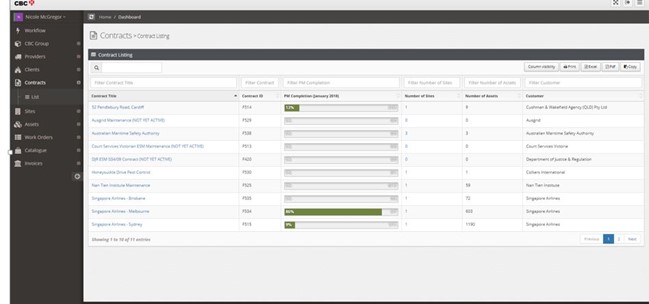
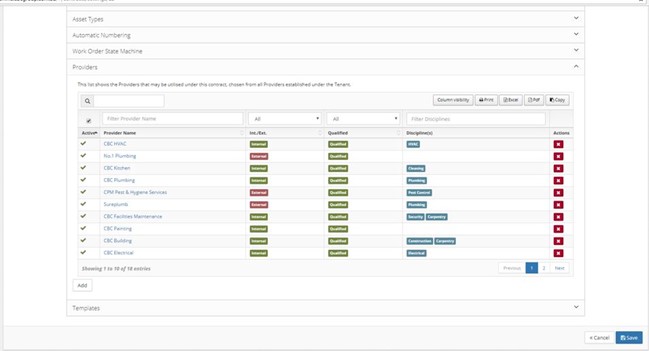
5.1 Add this provider to Contract(s) via the Contract Settings view.
- Find the Contract that this provider needs to be linked to.
- Click onto it and then then click on contract settings
- Click on the providers tab and press add select he provider from the drop down or start typing the name press ok
- Press save in the bottom of the screen Note: the above is required to be able to raise a Work Order for the Provider.
Note: If the provider is an existing one that already exists in CMMS and you are just linking them to the contract, you can update all so all provider users are linked to the contract in accordance with the matching time zones.
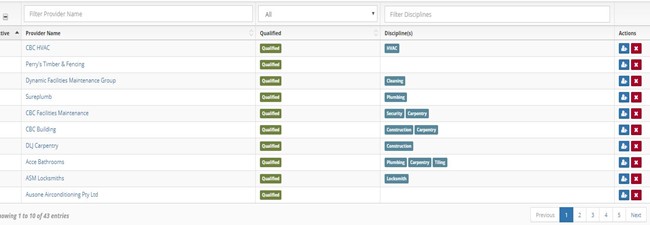

6.0 Provider Pack Received Back
Once the provider pack has been received back ensure all relevant information is checked against information in CMMS. Upload qualifications as per adding a qualification procedure and induction requirements entering Format & Expiries spreadsheet.
Please ensure that all provider packs are sent onto accounts for updating in JIWA.
Refer to add a user procedure to add personnel for work order etc. delivery and technicians for logging on and off.
7.0 Unlinking Provider from a Contract or Contracts
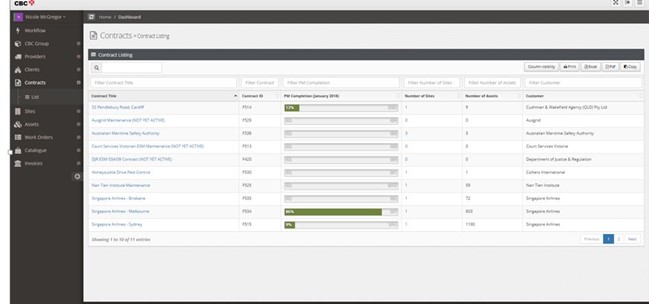
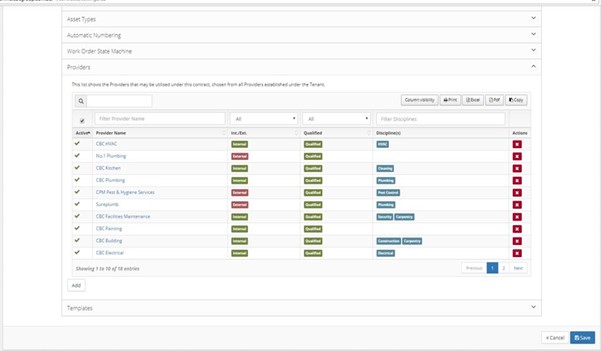
7.1 Unlink this provider to Contract(s) via the Contract Settings view.
- Find the contract that this provider needs to be removed from
- Click on the required contract
- Unassign users first
- Then update all this will unassign all users

7.2 Remove this provider from the Contract(s)
- Press the cross to remove the provider
- Press save in the bottom of the screen