CBC-PROC-226 Version 1 last review date: Sep, 2020
The Raising Scheduled Work Orders process is used to generate Work Orders based on the Schedules set up for a particular Contract.
When the process is initiated, the Schedules for the Contract will be analysed. For each task that would fall due in the given date range, a proposed work order will be generated. These proposed Work Orders can be reviewed before clicking the final Raise Work Orders button, which will create actual Work Orders, and distribute them to the Providers.
Before Raising Scheduled Work Orders, ensure the following procedures have been completed: • Check to ensure that all Schedules that you desire to be raised are set to Active. • Ensure Contract Start Date and End Dates are correct on Contract settings. • Ensure Provider administrative users are correctly setup to receive Scheduled Work Orders. See the ‘CBC-PROC-009 Add New User’ procedure.
The raising process is resource-intensive and can cause a slowdown of CMMS. It is recommended that the process be run when the usage of the system is lower, such as afterhours or late in the day.
1.0 Raising Scheduled Work Orders
Click the ‘Contracts’ menu option on the Navigation Panel, then click the ‘List’ menu option.
Navigate to the Contract for which you wish to raise Scheduled Work Orders.
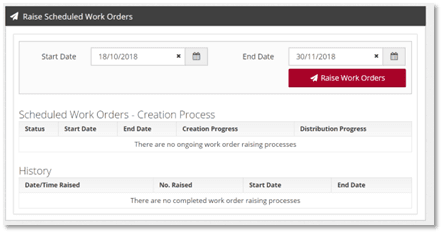
From the ‘Raise Scheduled Work Orders’ panel, click the ‘Start Date’ Calendar icon or enter the date to define a starting date for the Schedules.
From the ‘Raise Scheduled Work Orders’ panel, click the ‘End Date’ Calendar icon or enter the date to define an end date for the schedules. This period represents the period in which the system will select schedules to raise, where the schedule has a Next Due date in that range.
Click the ‘Raise Work Orders’ button to display a list of proposed Work Orders.
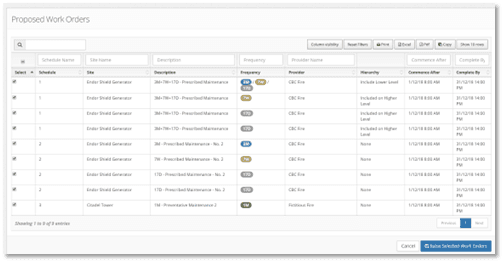
On the ‘Proposed Work Orders’ view, review all the desired Work Orders are displaying accurately. By default, all proposed Work Orders are selected. If required, proposed Work Orders can be deselected, so they do not get raised.
Once your review of the proposed Work Orders is complete, click on the ‘Raise Selected Work Orders’ button to begin the process.
2. Review Progress
2.1 Schedules Work Order creation and distribution Progress.
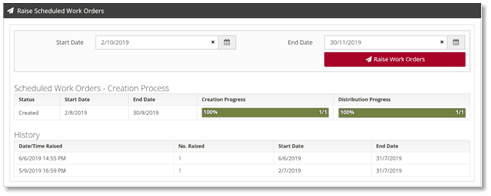
When the Raise Scheduled Work Orders process is initiated, Work Orders will be created in CMMS for the selected schedules, which includes Work Order PDF generation and creation of emails to the respective Providers. On the Contract Dashboard, ‘Raise Scheduled Work Orders’ panel, the Creation Process section shows progress bars for the creation and distribution of Scheduled Work Orders. The creation and distribution process can take from several minutes to several hours depending on the number of work orders raised.
2.2 Scheduled Work Order Batch Email
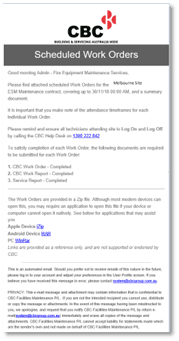
When Scheduled Work Orders are raised, the Provider will be notified with a Scheduled Work Order email with zip file attached. The zip file contains a summary spreadsheet and PDF’s or all work orders raised for that Provider.
The summary and Work Order PDF’s are provided in a Zip file. Although most modern devices can open this, you may require an application to open this file if your device or computer cannot open it natively. See below for applications that may assist you. Apple Device iZip Android Device RAR PC WinRar Links are provided as a reference only and are not supported or endorsed by CBC.
2.3 Summary Spreadsheet
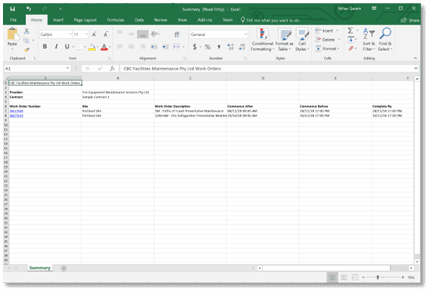
The summary spreadsheet contains a list of all the Scheduled Work Orders raised in this batch, for the respective Provider. Each entry notes important attendance information about the Work Order. It is recommended that each Work Order be reviewed (either in the CMMS Portal via the link, or on the included PDF) to ensure all information is read and understood.
2.4 Scheduled Work Order PDF
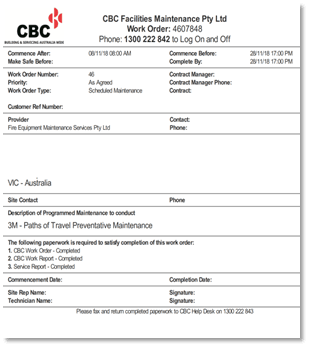
The Scheduled Work Order PDF displays all relevant information regarding the job. It also includes a list of required documents to submit to CBC to satisfy the requirements of the Contract.