CBC-PROC-009 Version 6 last review date: Nov, 2020
1. Overview
Administration Users
- Each provider should have an administration user set up, with Notification Settings ticked, to ensure Work Orders are received. Mailbox Users
- A Mailbox User is a special user type for group email addresses, such as ‘service@xxxxx.com’.
- A Mailbox User has no permissions within the system and is for distribution list purposes only.
- If the user you are creating has a name, they should not be a mailbox.
- If the user you are creating does not have a name, i.e. ‘service’, ‘admin’ or similar, the role MUST be ‘mailbox’.
2. Add a New User
If the contract that you are linking a user to is run through Mex and not CMMS, please ensure the user is also added to MEX.
To ensure users can login to the Portal or App, it is important to gather an email address at User creation time.
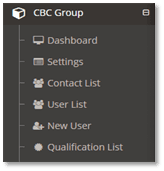
2.1. Navigate to the ‘New User’ view, via the Navigation Panel.
- This will launch a view allowing you to enter details for the new User.
3. Navigate to a Proposed User
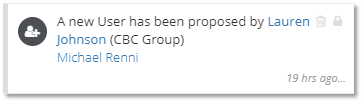
3.1. From a ‘New Proposed User’ notification, click the proposed users name to display the proposed users User Profile.
4. Edit User Profile
4.1. Details Panel
- Complete all required fields, and populate
| FIELD NAME | DESCRIPTION |
|---|---|
| First Name | Enter the user’s first name. |
| Family Name | Enter the user’s family name. |
| Position Title | Allows entry of the user’s position title as text. Text entered here will appear below the user’s name on their user profile. If a Position Title is not entered, the selected Role in the System panel will appear below the user’s name on the profile. |
| Phone 1 | Enter a phone number for the user. This can be the contractor companies phone number if we don’t have a direct phone number for the User.Phone 2 |
| Primary Phone | Select the Phone 1 or Phone 2 to be the primary phone number on the account.Email |
| Local Timezone | Allows the selection of the timezone the user resides in, such as ‘Australia/Sydney.’ |
| You can type ahead to find the correct entry without having to scroll through all entries.Onsite/Offsite | Specifies whether the user attends site (onsite) or is office based (offsite) or both. |
| To ensure the correct Qualification Requirements are applied to this User, please ensure the correct checkboxes are selected. |
4.2. System Panel
- Select a Parent Type, Parent and Role for the new User.
| FIELD NAME | DESCRIPTION |
|---|---|
| Parent Type | Tenant: Represents the operator of CMMS i.e. CBC. Provider: Represents providers and suppliers that CBC engage. Client: Represents clients that engage CBC to perform works and maintenance. |
| Parent | For internal (tenant) users: ‘CBC’ Provider Users: The contractor company related to the user, such as the Provider Client Users: The client company that is engaging CBC. |
| Role | Allows selection of one or more roles. This governs the permissions the user will have in the CMMS app and portal. |
4.3. Contract and Site Assignment Panel
- Select Contracts and Sites the user will attend or need access to.
- Click the arrow button preceding the contract name to expand the Contract, Regions and select individual Sites.
Please refer to the Bulk Assigning step for assigning multiple users to Contract and Sites at the same time.
4.4. Notification Settings
4.4.1. Notification Delivery Options
- CMMS provides two ways for notifications or communications to be delivered, via the Portal or via email.
| NOTIFICATION STREAM | DESCRIPTION |
|---|---|
| Portal | Portal will deliver a notification to the CBC CMMS Portal, visible in the 'Notifications' box (top left). |
| Email will deliver an email to your registered email address. |
4.4.2. Notification Types
- CMMS generates notifications for a number of reasons, as listed below.
- Not all notification types are available to all users.
| NOTIFICATION TYPE | DESCRIPTION |
|---|---|
| Receive New Work Orders | Notify user when a new Work Order is created (email includes the work order pdf). |
| Receive New Schedule Work Order Batches | Notify user when New Schedule Work Order Batch is created |
| Scheduled Work Order Batch Raised Notification | Notify user when Schedule Work Order Batch is raised |
| Manual Work Order Raised Notification | Notify user when manual Work Order is raised |
| Work Order Approaching Commencement Deadline Notification | Notify user when Work Order is approaching Commencement Deadline |
| Work Order Approaching Completion Deadline Notification | Notify user when Work Order is approaching Completion Deadline |
| Work Order Completed Notification | Notify user when Work Order is Completed |
| Work Order Log Off Reminder Notification | Notify user reminding them to Log off a Work Order |
| User Qualification Close To Expiry/Expired Notification | Notify user when their Qualifications are close to expiring |
| Provider Qualification Close to Expiry/Expired Notification | Notify user when Provider’s Qualifications are close to expiring |
| Receive Debtor Invoice | Notify user when a new Debtor Invoice is received |
| Receive Creditor Invoice | Notify user when a new Creditor Invoice is received |
| Creditor Invoice Submitted Notification | Notify user when a new Creditor Invoice is submitted |
| Debtor Invoice Submitted Notification | Notify user when a new Debtor Invoice is submitted |
| New User sign up Notification | Notify user when a New User signs up |
| New Proposed User Notification | Notify user when a Proposed User is created |
| New Work Request Submitted (Client Approval Required) Notification | Notify user when a new Work Request is submitted |
| Work Request Approved for Action Notification | Notify user when a Work Request is Approved for Action |
| Work Request Rejected Notification | Notify user when a Work Request is Rejected |
| Audit Complete (Work Order) | Notify user when a Work Order Audit is completed. |
| Audit Complete (Site) | Notify user when a Site Audit is completed. |
| Audit Complete (Provider) | Notify user when a Provider Audit is completed. |
| Receive Quote | Notify user when a Quote is submitted (email includes the pdf of the submitted quote). |
| Receive Quote Submitted Notification | Notify user when a Quote is submitted. |
| New Quote Request Submitted | Notify user when a Quote request submitted. |
| Quote Approval Request (Internal) | Notify user when a Quote is sent for further approval internally. |
| Quote Approved/Rejected (Internal) Notification | Notify user when a Quote is approved or rejected internally. |
| Quote Approved/Declined Notification | Notify user when a Quote is approved or declined by the client. |
| Quote Expired | Notify user when a Quote becomes expired by reaching its expiry date. |
When adding a Provider Administration user, and this is the only admin user for that Provider, all Notification Options should be selected to ensure that all important communication is received.
Technicians must be ticked for the ‘Work Order Log Off Reminder Notification’.
4.5. Qualifications
4.5.1. Add Required Qualifications
- Required Qualifications will automatically populate according to the Contract(s) selected. In some cases, it is necessary to manually add additional Required Qualifications.
- Add new folder for user under the relevant company folder and file all received qualifications G:\COMPANY RECORDS
- All police checks to be filed in police check folder under correct alphabetical letter/company name and persons name i.e.: A/Ablaze Electrical/Samuel Potter G:\COMPANY RECORDS\4. POLICE CHECKS
For all Electrical/Plumbing companies please ensure you manually add an electrical or plumbing licence to the user. You can search the person licences at the time of set up using the below:
contractor licence i.e.: - Electrical etc. This can be researched at the time of set up NSW Link. QLD Link VIC Link TAS Link WA Link SA Link
4.5.2. Adding the Required Documentation
- All required documentation will need to be added from the company records in G Drive.
- For relevant expiries etc. refer to Induction requirements Entering format & expiries.
- To add required qualifications, refer to submit a qualification procedure
Before a technician can attend site, any outstanding Qualification Requirements must be uploaded and approved by the CBC Inductions team. Any documents already in CBC’s possession should be uploaded at creation time.
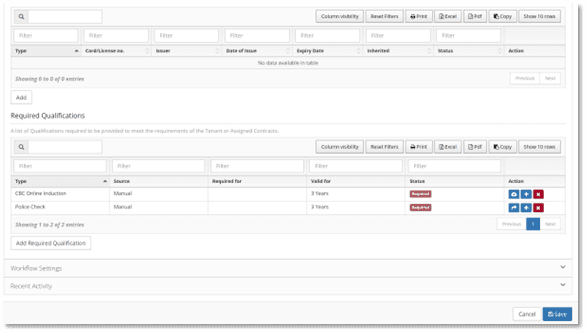
4.6. Mark an existing Required Qualification as Not Required.
1.
- From the Required Qualification table, click the yellow check button to display a pop-up form.
2.
- Enter a reason that the Required Qualification should be considered Not Required.
3.
- Click the ‘Save’ button. The qualification will disappear from the Required Qualifications table and will appear in the Qualification table
4.
- Click the ‘Save’ button.
4.7. Remove the Not Required status from a Qualification previously marked as Not Required.
- From the Qualifications table, click the ‘Mark as Required’ button to remove the ‘Not Required’ flag from the Qualification. If the Qualification is still required due to Contract Assignments, it will return to the Required Qualifications table.
5. Click the ‘Create Non-system User’ or ‘Create System User’
- This will save the user to the database.
- Non-System Users are users with no access to the CMMS portal or app.
- System Users have access to the CMMS portal and app.
If you have created a number of users for a Provider, you can assign all of them to Contracts and Sites at once with the Bulk Assign tool. This requires that each user has had a timezone selected on their respective User Profile.
6.0 Bulk Assigning Users
If you have created a number of users for a Provider, you can assign all of them to Contracts and Sites at once with the Bulk Assign tool. This requires that each user has had a timezone selected on their respective User Profile.
6.1. Open the Bulk Assign tool
1.
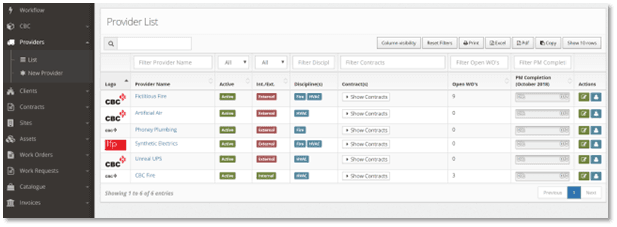
- Select ‘Provider’ from Main Menu, and then select ‘List’ to view all Providers.
2.
- Type the Provider Name on the ‘Filter Provider Name’ field or Navigate to Provider on the Page.
3.
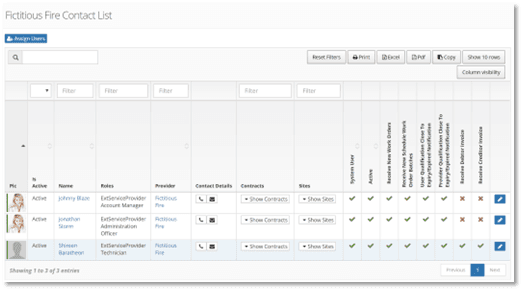
- Press the Provider Contact List button to view.
4.
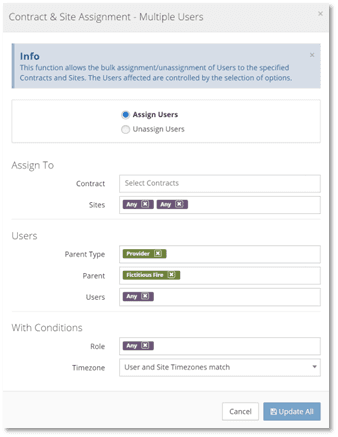
- Select ‘Assign users’ on Provider Contact List, to begin working on Bulk assigning window.
6.2. Adjust the Settings and Click the ‘Update All’ button
- Select whether you are assigning or unassigning users. ‘Assign Users’ is the default option.
- Select one or more contracts to which the users need to be assigned.
- Select users to be assigned. This can be by selecting indivduals, or by the ‘Any’ option.
- Select a Role condition from the list, or select the ‘Any’ option to assign users with any role. Users that don’t match the condition will not be assigned.
- Select a Timezone condition from the list. ‘User and Site Timezones Match’ will assign individual Users to Sites where they have the same timezone. Each user is considered separately. If the ‘Any’ option is selected, users will be assigned to all Sites on the selected Contract.
- When all fields have been adjusted to your requirements, select ‘Update ‘All’ to make the changes. If the process is affecting many users, it can take some time to complete.