CBC-PROC-284 Version 2 last review date: Aug, 2023
1.0 Submit an Invoice Dispute
1.1. Submit an Invoice dispute via Invoice
From the Purchase Order/Creditor Invoice View, expand the ‘Actions’ panel.
Click on the ‘Place in Dispute’ tab.
Click the ‘Place in Dispute’ button to bring up the ‘Select Email Recipients’ pop-up form. Dispute Start Date and Time defaults to the current date and time. You can update the pre-populated date and time if necessary.
From the ‘Select Email Recipients’ pop-up form, complete the required fields. See below for a list of fields.
When all the required fields have been populated, click the ‘Send’ button to submit the dispute. This will generate an email to the users in the ‘To’ and ‘Cc’ fields and will add an action to the Action List on the invoice.
1.2. Table - Dispute Invoice Pop-up Form Fields
| FIELD | DEFINITION |
|---|---|
| Contact (To) | Allows the entry or selection of Provider users and will be pre-populated based on the ‘Invoice Enquires’ notification setting. Email addresses can be entered manually if necessary. |
| Contact (Cc) | Allows the entry or selection of internal users and will be pre-populated based on the ‘Invoice Enquires’ notification setting. Email addresses can be entered manually if necessary. |
| Dispute Reason | Enter the reason the invoice is to be placed in dispute. The entered dispute reason will appear on the Dispute email template. You can add pre-set dispute reasons by selecting an option from the ‘Dispute Options’ and clicking the ‘Add’ button. This will add the selected option to the end of the Dispute Reason text. Multiple options can be selected by following this process for each option. |
| Dispute statement | Select a Dispute statement from the List. |
1.3. The Dispute Form
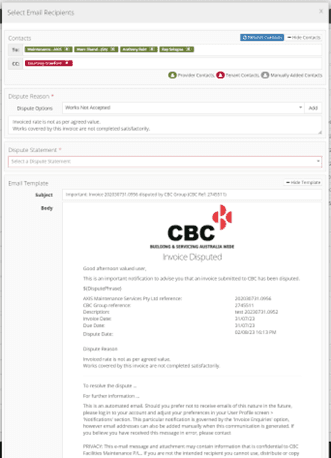 Image: ‘Select Email Recipients’ pop-up form.
2.0 Track the Progress
2.1. Tracking invoices in dispute via Workflow
- Add the ‘Creditor Invoices’ workflow panel to your workflow view.
- On the ‘Creditor Invoices’ workflow panel, click the ‘Disputed’ count to be taken to a list of disputed Creditor invoices.
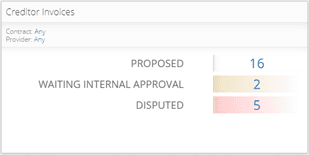 Image: ‘Creditor Invoices’ Workflow Panel
2.2. Tracking invoices in dispute via Creditor Invoice List
- Click the ‘Invoices > Creditor Invoice List’ menu option.
- In the Status filter, type ‘Dispute’ to filter the list to only invoices with the ‘Disputed’ status.