CBC-PROC-293 Version 1 last review date: Sep, 2021
1.0 Receiving an Invoice Approval Request
When the accounts team raise new Creditor Invoices or Purchase Orders for a Contract you work on, you may be required to review that item against the linked Work Order(s) to ensure it is accurate and ok to pay.
1.1. Receive the notification via email
- Click the link on the Invoice number to open the Invoice in the browser.
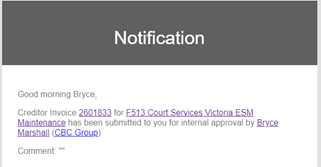
Image: Email Notification
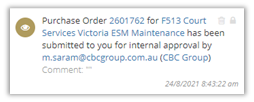
Image: Portal Notification
1.2. Receive the notification via the Portal
When new portal notifications are received, the bell icon displays a red label indicating that new unread notifications are present.
- Click the Invoice number to open the Invoice view.
2.0 Reviewing the Invoice against the Work Order(s)
2.1. Open the Invoice/PO Line Items and PDF
- From the Invoice/PO view, expand the Document Management panel.
- Click the link in the ‘Document Title’ for each document present to download that file.
- At the least, you should expect to see one with the ‘Creditor Invoice’ or ‘Purchase Order’ Document Type.
- Expand the Line Items panel to see the charges on the Invoice/PO.
2.2. Open the Work Order
- From the Invoice view, expand the Line Items panel. This will display Line Items that are linked to Work Orders.
- Hold down the ‘CTRL’ key and click on the Work Order number in the ‘Work Order’ column to open the Work Order in a new browser tab.
- Click the new browser tab to view the Work Order.
- With the Work Order open, you can switch between the Invoice/PO tab and the Work Order tab to compare the two.
2.3. The Review Process
The review process itself is not detailed in this procedure but will usually include reviewing the following:
- Logged attendances (Costs panel) are a match.
- Required paperwork has been received (Document Management panel)
- Billed materials are noted on supporting documentation.
- Works are completed as per the description.
- Works are signed off, either digitally or on paperwork.
- If the Work Order is raised from a Quote, the line items on the Invoice are a match to those noted on the Provider’s quote.
3.0 Approving an Invoice
When you are satisfied that the invoice can be paid, the Invoice/PO is marked as approved. This will trigger notifications to Users, such as the Accounts team, to the next steps can be taken.
3.1. Approve Invoice/PO
- Click the ‘Approve (Internal)’ button to display the ‘Approve Creditor Invoice (Internal)’ pop-up form.
- Enter a comment if necessary. This will appear on Notifications.
- If the value of the invoice is below your Financial Delegation limit, you will be able to click the ‘Confirm Approval’ button. If it is over your limit, you will be required to send it on to another user for further approval, usually your manager.
Optionally, Invoices/PO’s can be sent to another user for further review even they are under your limit.
3.2. Forwarding an Invoice for further approval
- Click the ‘Approve (Internal)’ button
- From the ‘Approval Invoice’ pop-up form, enter a comment where necessary
- Select the approver from the Approver selection list.
- Click the ‘Send to Approver’ button.
4.0 Rejecting an Invoice
If any element of the invoice/PO is not as expected, you can reject it. When this occurs relevant users will receive a notification.
4.1. Reject Invoice/PO
- Click the ‘Reject (Internal)’ button to display the pop-up form.
- Enter a comment explaining a reason for the rejection.
- Click the ‘Confirm Rejection’ button.
All internal approvals, rejections and further approval forwarding for the Invoice/PO are recorded in the ‘Approval’ panel. This panel is only visible to internal users.