CBC-PROC-040 Version 2 last review date: Oct, 2020
1.0 Navigate to the Work Order
There are several ways to achieve this:
1.1 Navigate to the Work Order with the Work Order Search menu option.
- Type the Work Order number into the search field and press Enter. If the Work Order number entered can be matched exactly, it will load.
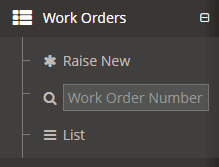 Image: ‘Work Order Search’ menu option.
1.2 Find it in the Work Order List.
Open the Work Order list via the menu option.
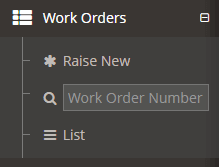 Image: ‘Work Order List’ menu option.
Find your Work Order in the list. You can use the filters at the top of the columns to reduce the list to the relevant one.
Click the Work Order number in the left most column to navigate to the Work Order.
2.0 Open the Document Management panel and upload the document.
2.1 Click the ‘Document Management’ panel.
2.2 Click the ‘Add’ button or click the ‘+’ button against an entry on the ‘Required Documents’ table. A form will appear allowing you to upload the file and enter details.
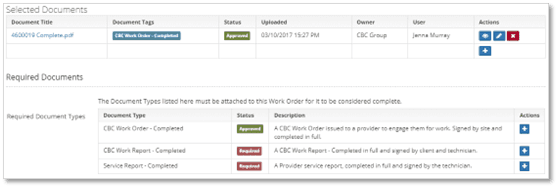 Image: The Document Management panel.
3.0 Enter Document Details
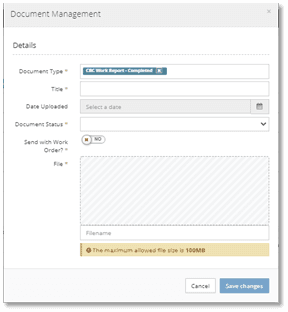 Image: The Document Upload form.
3.1 Drop your file on the Drop Zone (hashed area) or click the Drop Zone to bring up a file selection window.
- Starting with the file first will auto-populate the ‘title’ field.
3.2 Select Document Types as appropriate for what is being uploaded.
- Multiple Document Types can be added, allowing you to upload one document, but have it cover multiple document type requirements.
3.3 Update other fields as appropriate.
3.4 Turn on the ‘Send with Work Order?’ checkbox to send the Document with Work Order if need.
- If the checkbox is On, the Document will be attached to the Work Order email as a document when distributed.
- If the checkbox is Off, the Document will not be attached to the Work Order email as document when distributed,
3.5 Click the ‘Save Changes’ button.
- This will close the pop-up form.
3.6 Click the ‘Save’ button in the bottom right corner.
- Where the document types you are uploading are a Required Document for the Work Order, the Paperwork Status of the Work Order will update automatically. Once all required Document Types are uploaded and approved, the Paperwork Status will update to ‘Fully Received’.
4.0 Take other actions as necessary.
Should the paperwork indicate that faults are present, or that some other follow up action is required, this will need to be conducted outside of CMMS. This may include emailing the Facility Coordinator or Contract Manager.