CBC-PROC-224 Version 2 last review date: Sep, 2020
The Paperwork Processing tool is designed to be able to upload paperwork documents efficiently, without the need to access each entity (such as Work Orders) individually.
1.0 Open the Paperwork Processing tool
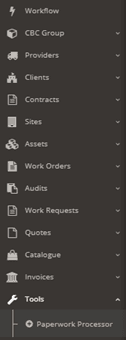
- Click the ‘Tools’ menu item on the ‘Navigation Panel’ and then click the ‘Paperwork Processor’ menu item.
2.0 Upload a Document
2.1 Settings Panel
The Settings Panel allows you to set persistent settings that can be applied to all documents you are uploading.
- Select a Default Entity from the list.
- Select ‘Document Type(s)’. This field allows multiple Document Types to be selected.
- Click the Status you want all uploaded Documents to have (Approved, Proposed, Rejected).
2.2 File Dropzone Panel
The File Dropzone Panel allows you to drag-and-drop files to be processed.
- Drag and drop your file into the Dropzone area to upload it, or click on the Dropzone to open a file browsing dialog box.
2.3 Preview Panel
The Preview panel allows you to review the file uploaded in the File Dropzone Panel.
Only certain document types are available for preview, which are: • PDF format • Image formats (JPEG, JPG, PNG, GIF) If the file type is not supported for preview, the user will be notified with a message: ‘This file is unable to be displayed. The file can still be processed.’
2.4 Entity Selection Panel
The Entity Selection Panel allows you to select the entity to attach the document to, such as a Work Order, Invoice, or Asset.
Default options for the Entity Type, Document Type(s) and Status fields can be selected on the Settings Panel. These settings will persist for each uploaded document in the current session.
-
You can utilise the Smart Search control to conduct a search across Assets, Sites, Work Orders, Contracts and Invoices. Enter the full entity name of the Site or Asset, or If the entity is Work Order, Contract or Invoice then enter the full entity number and click the ‘Perform Search’ button OR
-
Select an ‘Entity Type’ from the list and then select the specific Entity from the dropdown list.
-
Select Document Type(s) from the list.
-
Enter a Document Title. This will default to the name of the file uploaded and can be changed if necessary.
-
The Filename field will be set as the filename of the file uploaded.
-
When attaching paperwork to a Work Order, the ‘Send with WO’ option will also be available. Where this is ‘Yes’ the Document will be attached to the outgoing email when the WO is distributed.
2.5 Details Panel
The Details Panel will appear differently depending on the Entity Type selected.
The Detail Panel allows you to review details of the selected entity. Review this information to ensure you are attaching the document to the correct item.
- Ensure all the information provided in Details Panel is accurate before processing paperwork.
The Detail Panel fields vary depending on the Entity Type selected.
2.6 Attendances Panel
The Attendances panel allows you to inspect, add or edit Log On and Log Off events for the selected Work Order.
The Attendances panel will only appear when the Entity Type selected is Work Order.
3.0 Process the Document
- Click the ‘Process’ button to upload and attach the Document to the specified entity (Work Order, Invoice, Asset etc) and reset the Paperwork Processing Tool so it is ready to accept the next file.
- When a Document is processed and the tool is reset, the Settings Panel will retain the settings you have entered so they can be applied against the next Document.